
2.2 Terminal Display
The BScript Editor allows you to create programs by sending different commands and experimenting with them in real time, and to determine how your device is working with the commander.
On this page
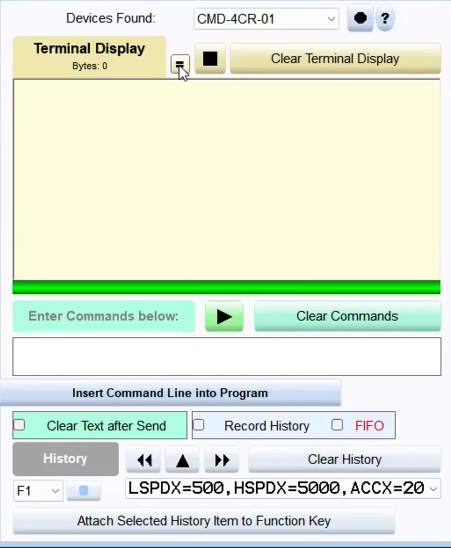
The terminal window displays commands executed in real time. The standard format shows everything sent from the script.
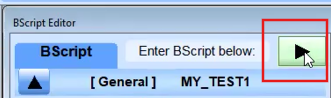
Click the Play button to run the script.
As it runs, a BScript command displayscurrent values at certian points in this section.
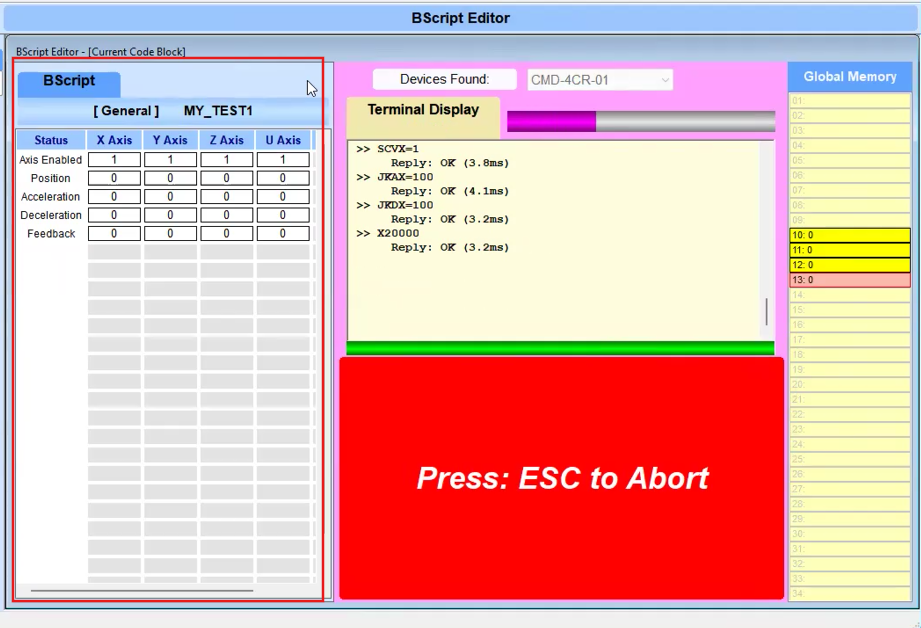
This shows the buffer memory where you can send the variables.
When the run is complete, scroll to see the exectuted commands in the Terminal Display.
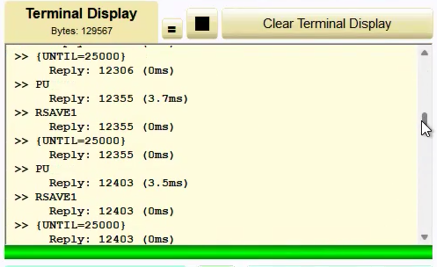
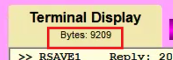
The display also shows the amount of memory used in storing the information in the terminal display.
Press ESC on the keyboard at any time to abort the run.
The format determines what is sent to the terminal window. Use this button to change the format:

<format option details>
You can send a single command, or a small group of commands by typing here:

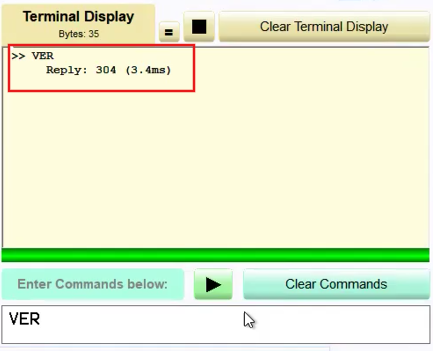
Click the Play button, or press enter on the keyboard, and is sent, in this example, VER which requests a version.
The Reply is shown in the Terminal Display, and indicates the amount of time it took to be executed (3.4 milliseconds).
Separate multiple commands with commas (,).
Insert Command Line into Program
Click the Insert Command Line into Program button to add the command to a script.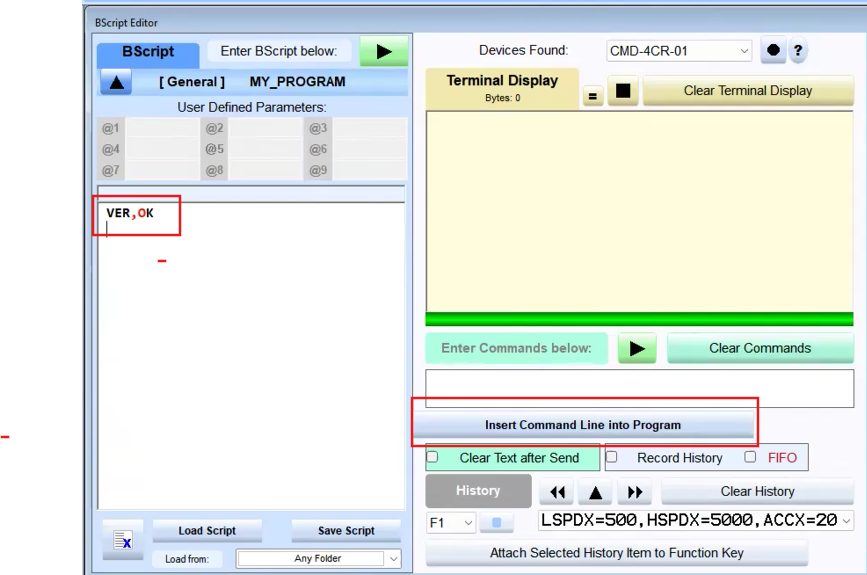
Additional Terminal Display Options
- Click the Record History button to record the history. Select the FIFO checkbox to record first in first out.
- Click the Clear History button to clear the history.
- Select different history command(s).

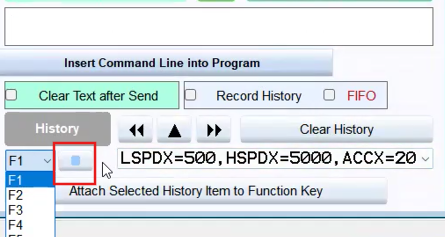
- Assign content in the Terminal Display to a function key.
See Commander Control Utility and NPA Terminal Utility for additional details.