
3.1 Build a Code Block
Use the Code Block Builder to generate code for selected programming languages and to prototype complex projects.
This video provides a walk-through of the steps documented below.
On this page
- Add an Action Command (00:13)
- Add a GUI Command (00:39)
- Add a Wait Action (01:50)
- Create a Subroutine (02:22)
- Create an Endless Loop (03:18)
- Call Subroutines Conditionally (04:22)
- Script Categories
Code Block Builder opens with only Start and End in the Block Builder.
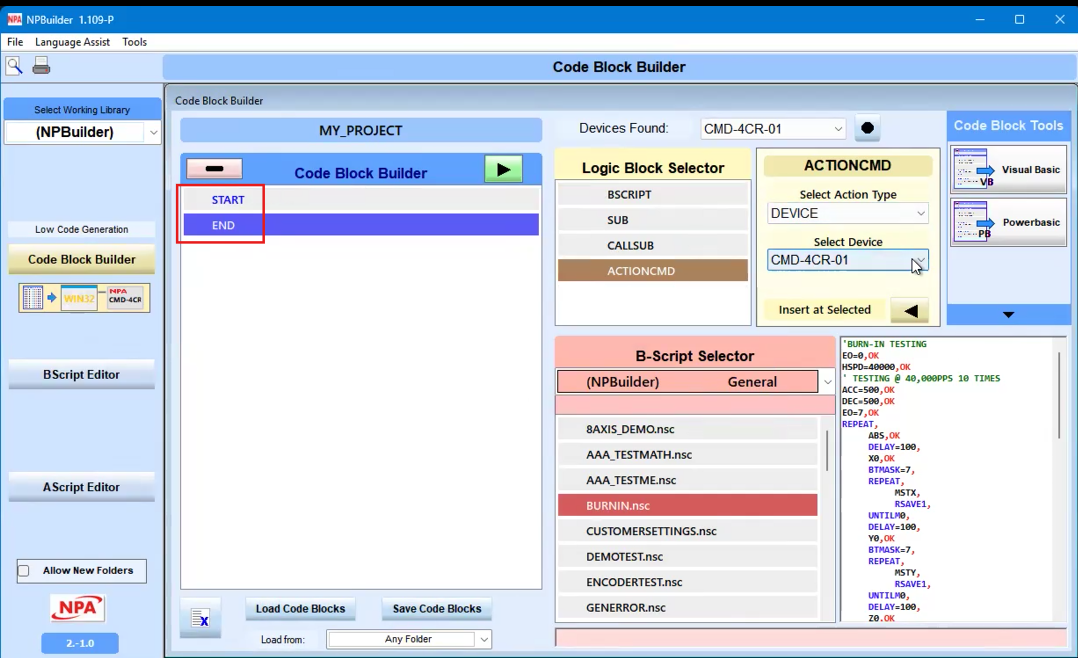
In the Logic Block Selector, select the command type to add to the builder.
- BSCRIPT
- SUB (subroutine)
- CALLSUB (call a subroutine)
- ACTIONCMD (action command)
Note: The Section next to the block selector changes depending on the selection.
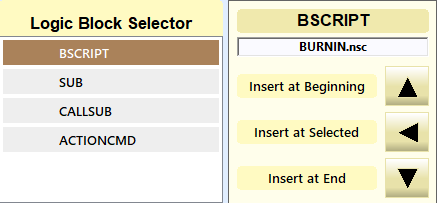
Following is an example of building a simple UI script.
- Click ACTIONCMD in the Logic Block Selector.
- Choose an Action Type (Device).
- Select the device or object to interact with.
- Click the Insert at Selected arrow button at the selected point in the script.
This creates an executable line.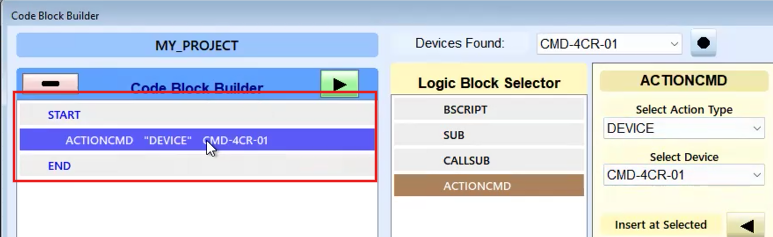
Add a GUI Command
Add GUI actions such as:
- Clear History Window – clears the execution log
- Clear Window – clears the main display panel where text and UI elements appear
- Display text, buttons, other UI elements
- Click ACTIONCMD in the Logic Block Selector.
- Select GUI as the action type.
- Select a GUI Command (SetButton1).
- Click the Insert at Selected arrow button at the selected point in the script.
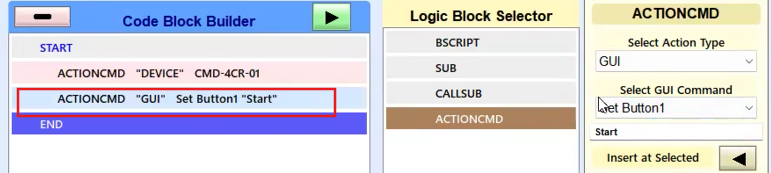
Up to five buttons are supported. Each button has a numeric ID.
Use a Wait Action to pause execution until a button is pressed.
Note: ACTIONCMD “GUI” Set Button2 “Stop” has been added.
- Click ACTIONCMD in the Logic Block Selector.
- Select Wait as the action type.
- Select a Wait Command (User Button).
In this example, the User Button is going to test for certain value, so if a user button is pressed, the number of the button is put in this value ($1), and memory location. - Click the Insert at Selected arrow button at the selected point in the script.
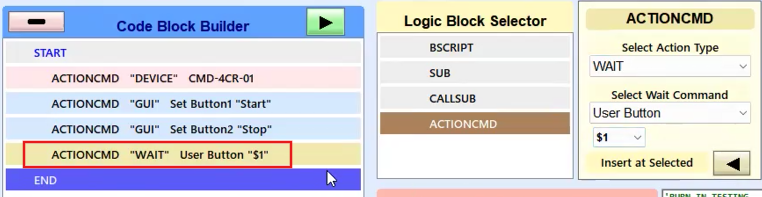
In this example, If a User Button is pressed, store the button number in global variable #1. This allows the script to detect which button the user selected.
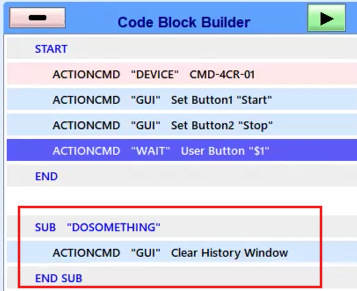
Subroutines allow you to organize reusable logic.
- Click SUB in the Logic Block Selector.
- Type a Subroutine Name (DOSOMETHING).
- Click the Insert at End arrow button.
- Add commands to the subroutine, such as clearing the history window or showing text using ACTIONCMD.
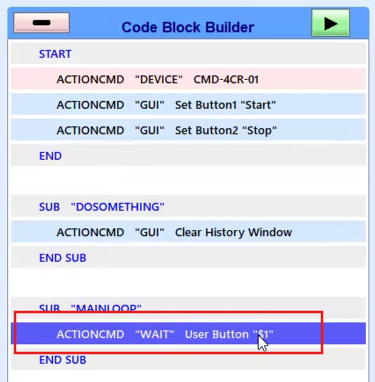
- Click SUB in the Logic Block Selector.
- Type a Subroutine Name (MAINLOOP).
- Click the Insert at End arrow button.
- Add commands to repeat continuously using ACTIONCMD, or as in this example, drag and drop the ACTIONCMD “Wait” User Button “$1” line to the MAINLOOP subroutine.
- Click CALLSUB in the Logic Block Selector.
- In the CALLSUB popup:
- Select MAINLOOP as the Subroutine to CALL.
- Select Endless for how many time to call.
- Click the Call Selected SUB button.
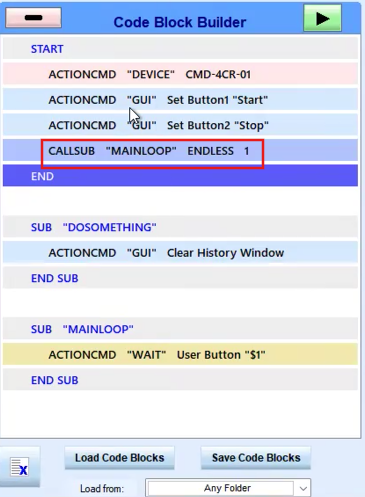
This creates a continuous loop that checks for button presses.
Call Subroutines Conditionally
Evaluate global variables in the MAINLOOP subroutine:
- Click CALLSUB in the Logic Block Selector.
- In the CALLSUB popup:
- Select DOSOMETHING as the Subroutine to CALL.
- Select IF for how many time to call.
- For Global Variable, select $1.
- For IF Comparison, select = (Equal).
- For Value, type 1.
- Click the Call Selected SUB button.
- In the Code Block Builder Section, select the ACTIONCMD line in the DOSOMETHING subroutine.
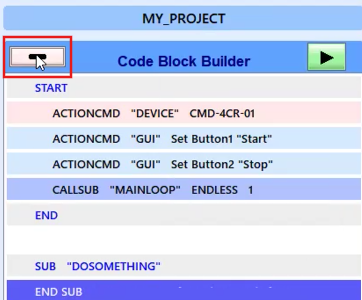
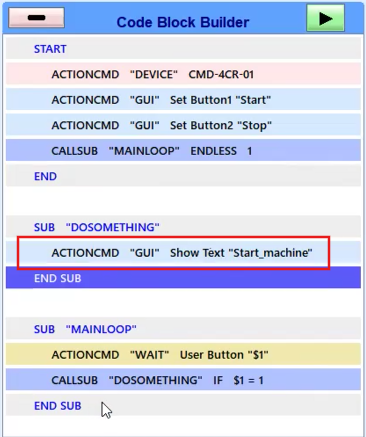
- Add an ACTIONCMD, type GUI, with GUI Command Show Text to the DOSOMETHING subroutine.
- Type Start Machine.
- Click the Insert at Selected arrow button.
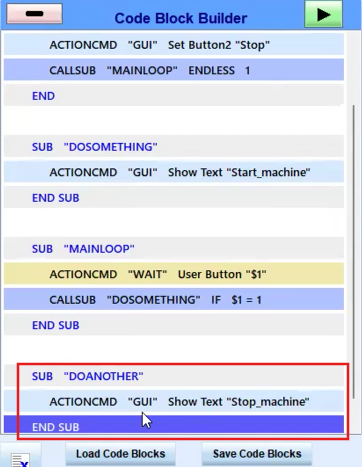
- Create another subroutine (DOANOTHER).
- Add an ACTIONCMD, type GUI, with GUI Command Show Text to the DOANOTHER subroutine with text Stop machine.
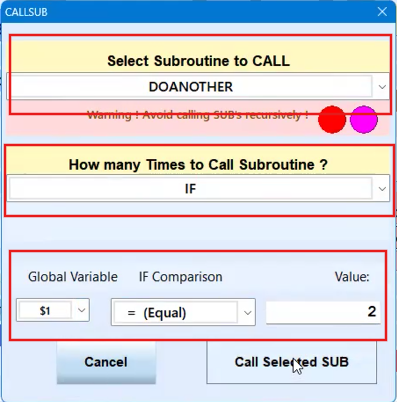
- Add a CALLSUB command.
- For Global Variable, select $1.
- For IF Comparison, select = (Equal).
- For Value, type 2.
- Click the Call Selected SUB button.
- Add an ACTIONCMD: type GUI, GUI command Show Panel.
- Add an ACTIONCMD: type GUI, GUI command Update UI.
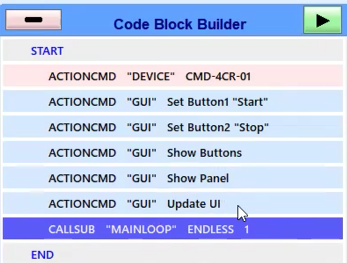
When you press the Play button, the script opens in the Run Code Blocks screen. On the right side of the screen:
- Pressing Start prints Start Machine.
- Pressing Stop prints Stop Machine.
- The main loop continues checking for button presses.
- Subroutines execute based on the global variable values.
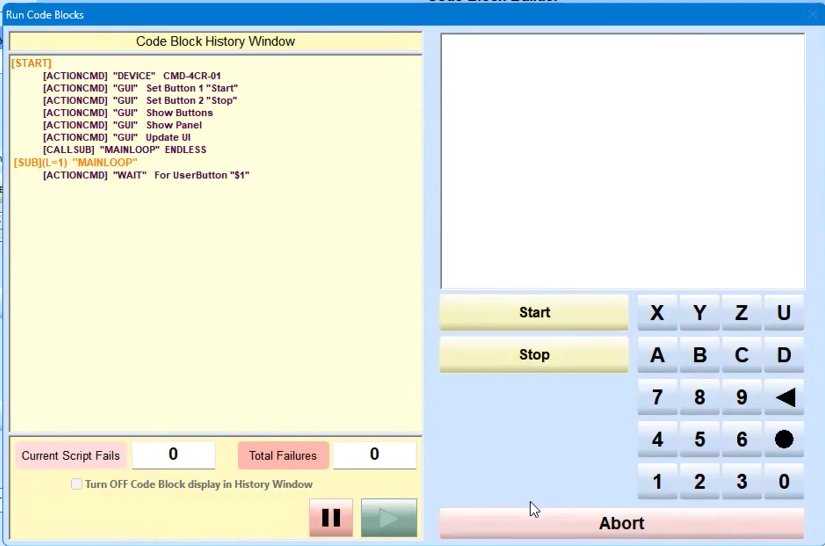
Expand this structure to create menus, run different script sections, or build more complex user interfaces.
The Script Builder organizes scripts into categories:
- System Config
- Motion Control
- I/O Control
- General
There are two Nippon‑specific folders:
- Nippon NP Builder - editable scripts
- Nippon –Read Only library