2.0 Navigation
Commander Control Software Navigation
This section covers the navigation for the Commander Control Software; exceptions are noted in specific topics.
On this page:
Commander Control Software opens as a blank work area with a menu bar:
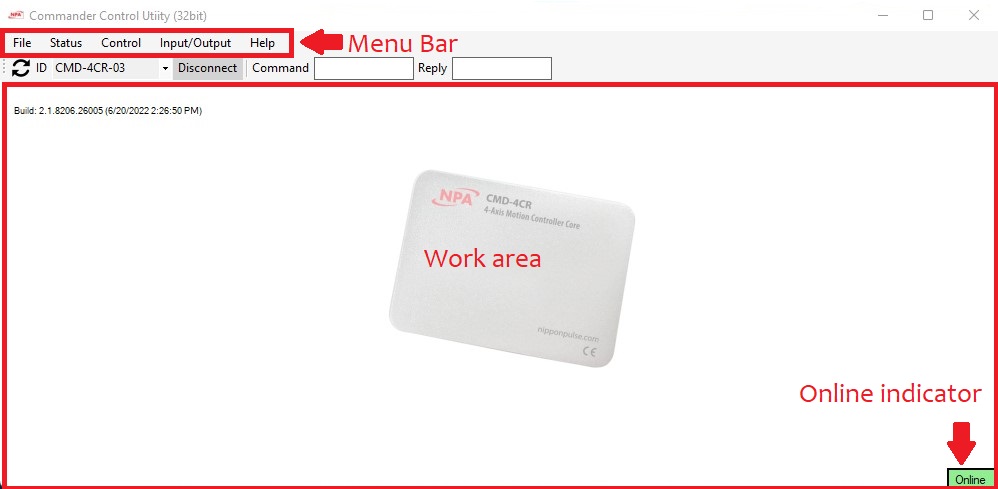
Once communication is established successfully, all screen options are available through the top menu bar. Each category contains the associated screens for that portion of the software. Any number of screens can be opened and displayed in the main work area.
All screens appear in the work area. Wen multiple screens overlap select an overlapped screen to move it to the top.
Screen Access
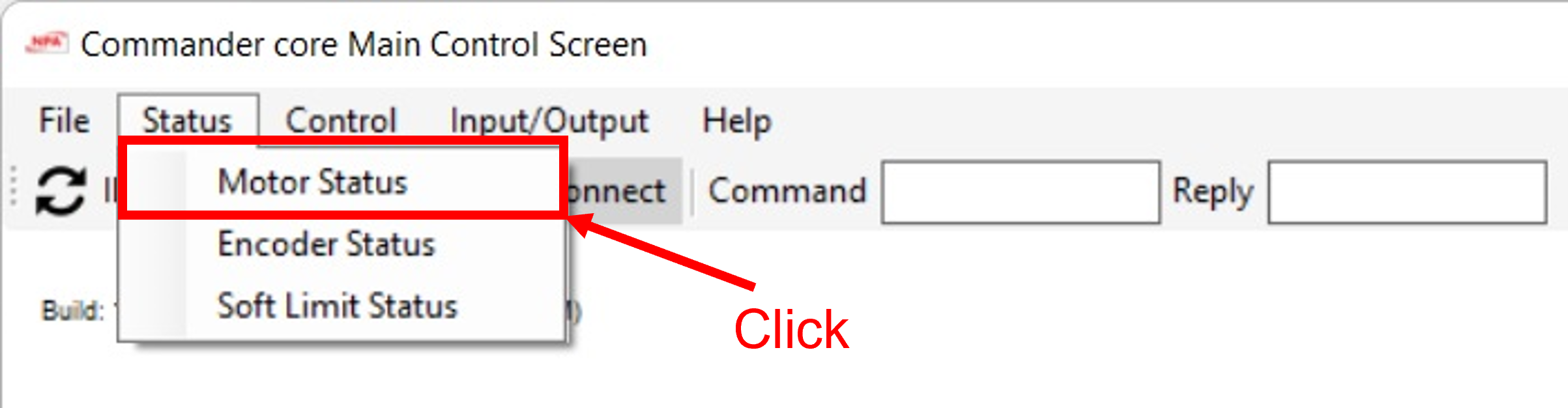
To open a work window, click the menu tab , then select a screen.
The work window opens in the work area.
A check mark highlighted in blue indicates an open screen is open. Click the screen name on the menu bar to close the screen.
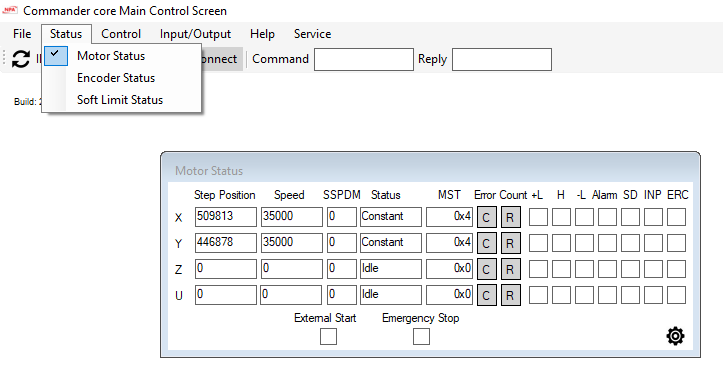
Note: Some work windows have an  in the top right corner. You must click the to close the window.
Expand Screen
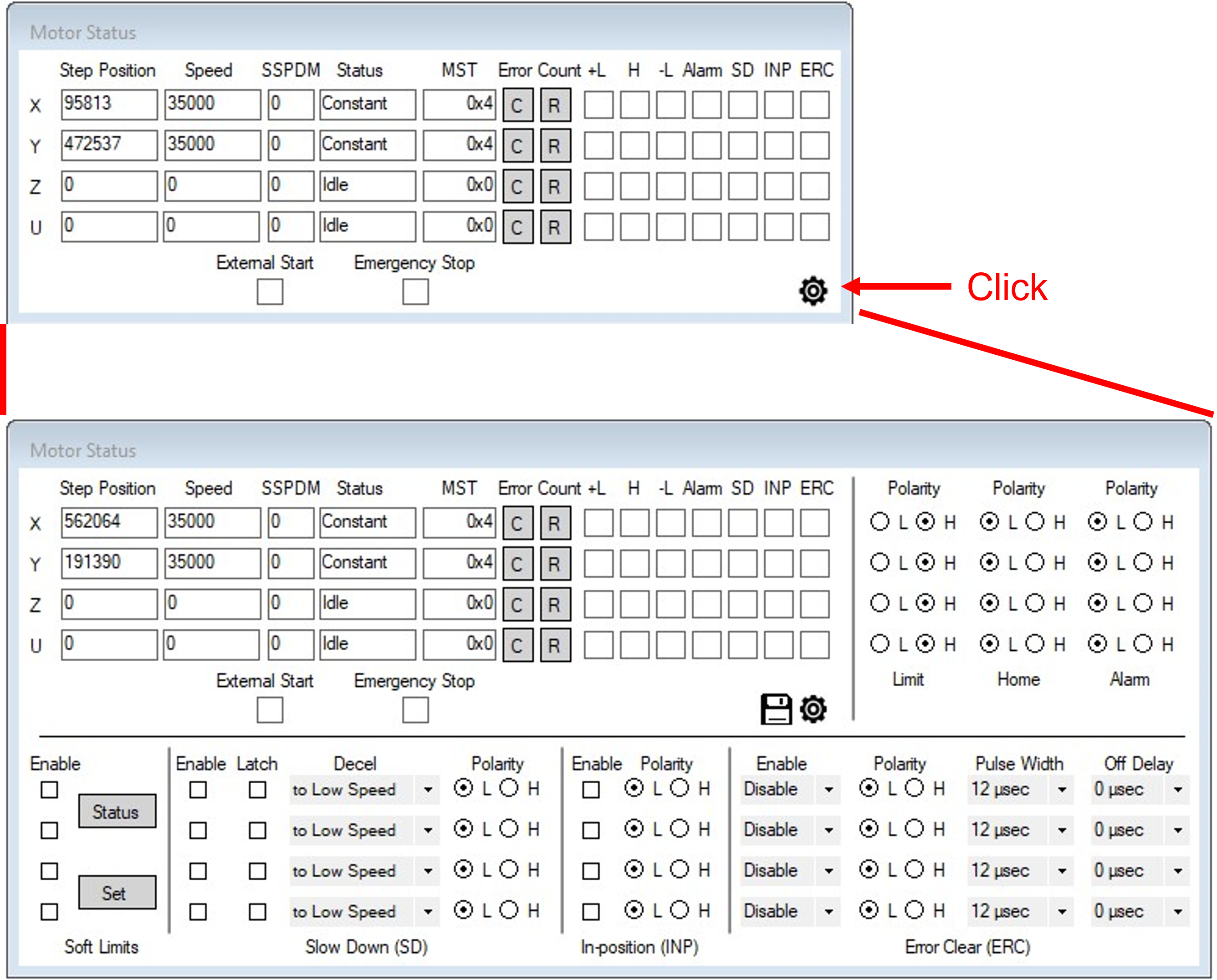
Many screens open in basic mode with basic information for that function.
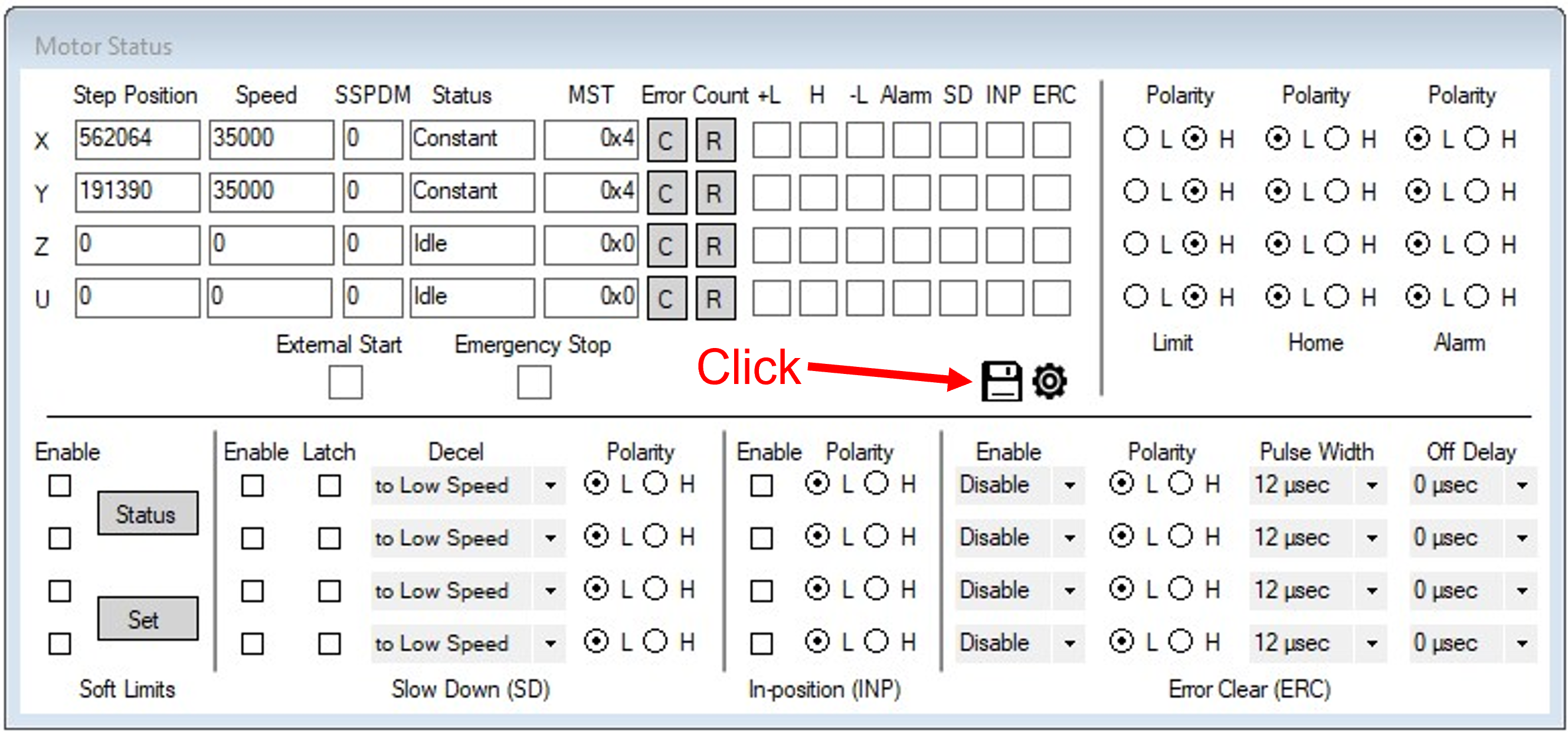
Click Settings ( ) to expand the work window to display advanced settings.
Click the settings icon again to close the advanced view and revert to the basic view.
Save Configuration
The Save icon ( ) is displayed when screen configuration settings can be saved.
Click Save to store settings to the Commander as default (See Flash Memory). Some commands (e.g. ID, DB) require a Commander power cycle before they take effect.