Commander Firmware Upgrade to RC305
Prerequisites
Follow this procedure to upgrade your Commander hardware from firmware version 301 (or higher) to version RC305.
Confirm your current starting state before continuing:
- Sending the VER command returns version 301 or higher.
Gather these required installation files:
- Commander Driver Installer v2.0.0

- Firmware Update GUI Installer v1.2.0.1
- Firmware Options: Commander RC305
- Bootloader:
Steps
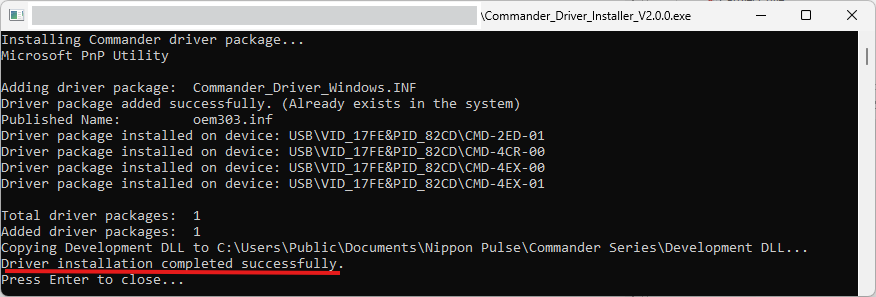
- Install the device driver. Run Commander_Driver_Installer V2.0.0.exe on your computer.
- Expected result: The driver files install, a copy of the new DLLs will be placed in the folder "C:\Users\Public\Documents\Nippon Pulse\Commander Series\Development DLL". A screen similar to the one below will display, look for the statement "Driver installation completed successfully."
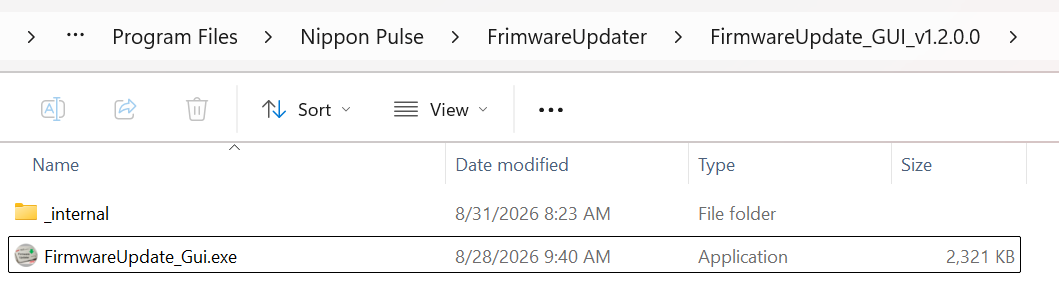
- Install the firmware updater utility. Run FirmwareUpdate_GUI_Installer_1.2.0.1.exe and complete the setup wizard.
- Expected result: The installer places FirmwareUpdate_Gui.exe into C:\Program Files\Nippon Pulse\FirmwareUpdater, and places a shortcut in the Start menu.
- Connect your hardware. Plug in only a single Commander unit you plan to downgrade, and verify your computer detects it.
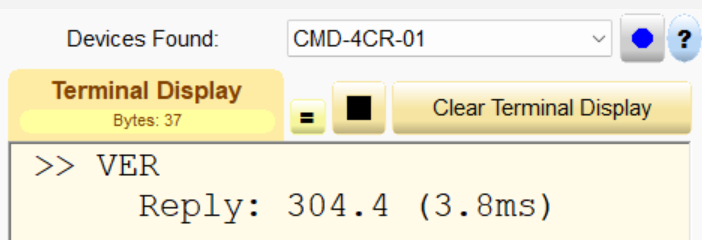
- Expected result: Exactly one Commander device is connected to your PC. Use NPA Terminal Utility to confirm that the Commander is connected and that sending the VER command returns version 301 or higher.
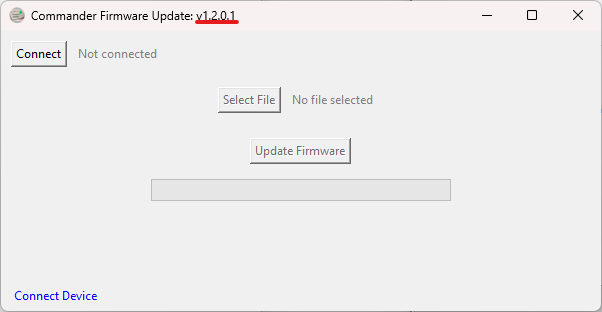
- Launch the FirmwareUpdate_Gui tool. Open FirmwareUpdate_Gui from the start menu.
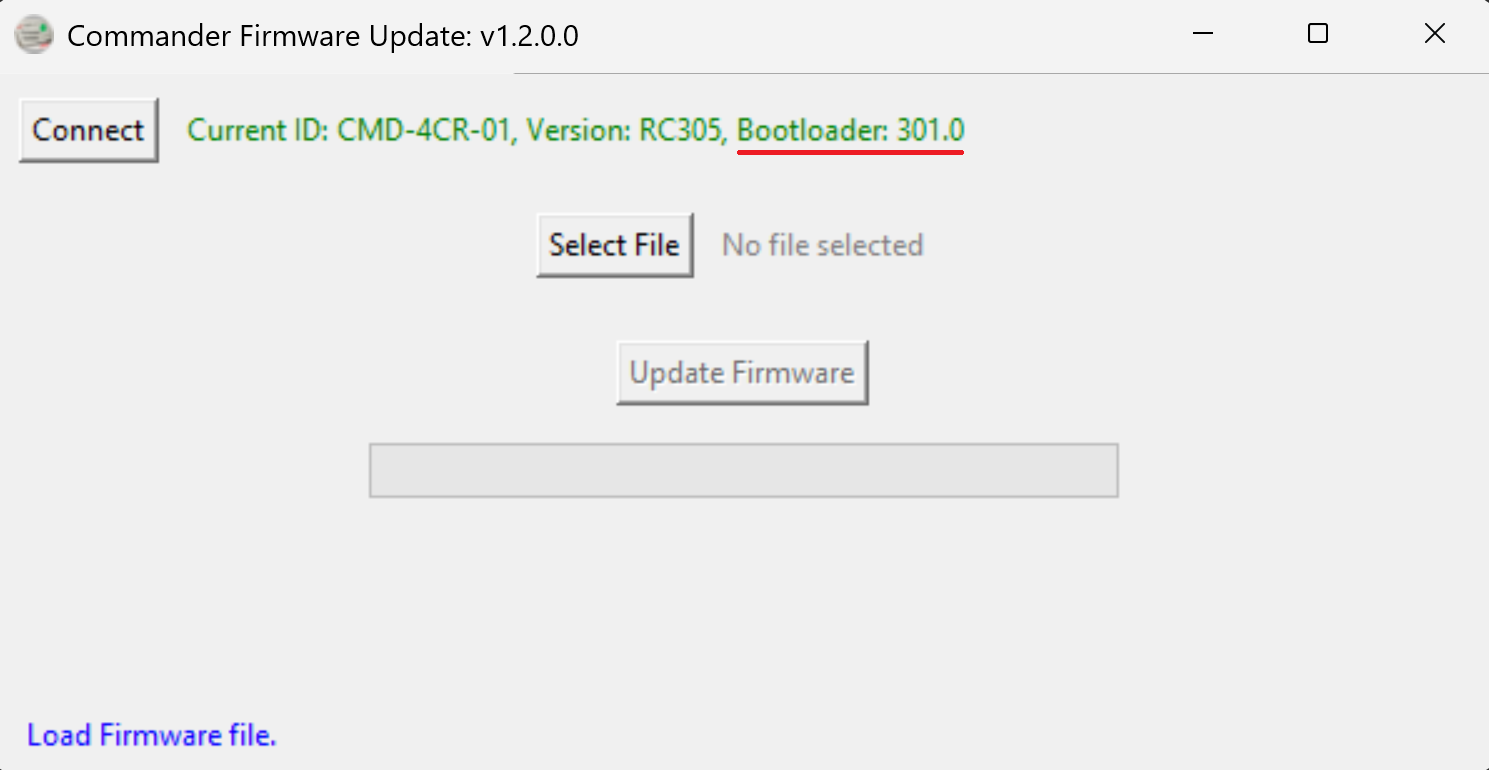
- Expected result: The utility opens, and the title bar displays Commander Firmware Update: V1.2.0.1.
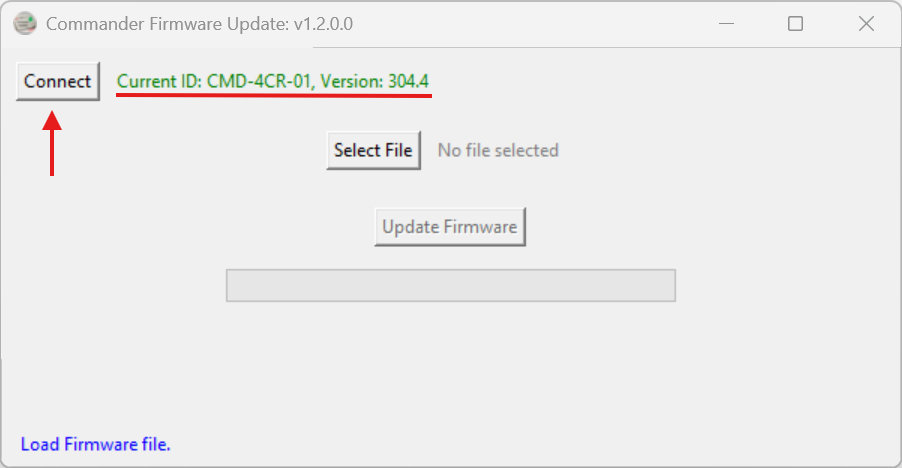
- Connect to the controller. Click the Connect button in the GUI.
- Expected result: The software binds to your connected Commander unit.
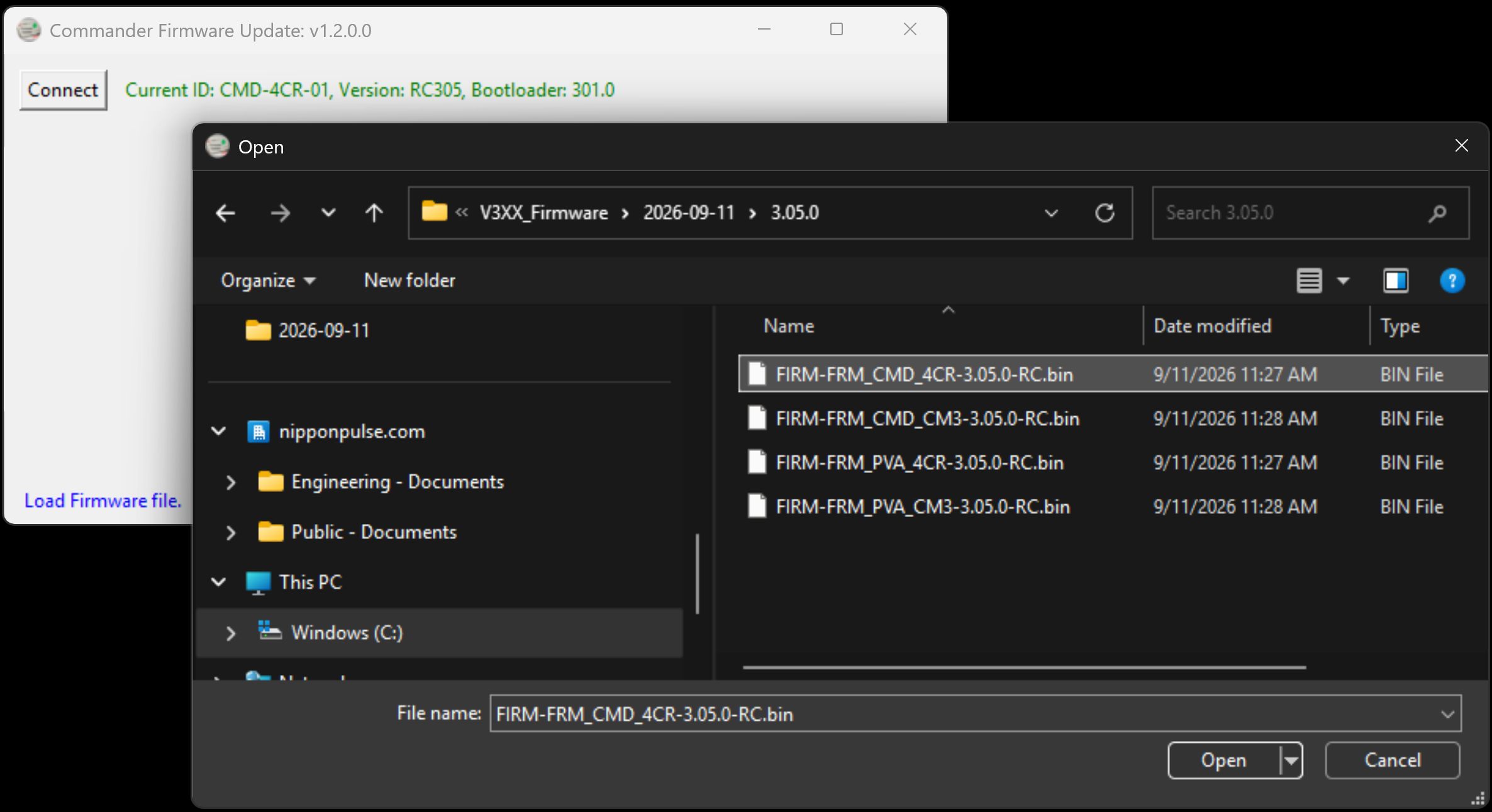
- Load the v305 firmware file. Click Select File, then choose FIRM-FRM_CMD_4CR-3.05.0-RC.bin.
- Expected result: The firmware binary path appears in the file selection box.
- Expected result: The firmware will be verified and status will be displayed in blue text at the bottom of the window.
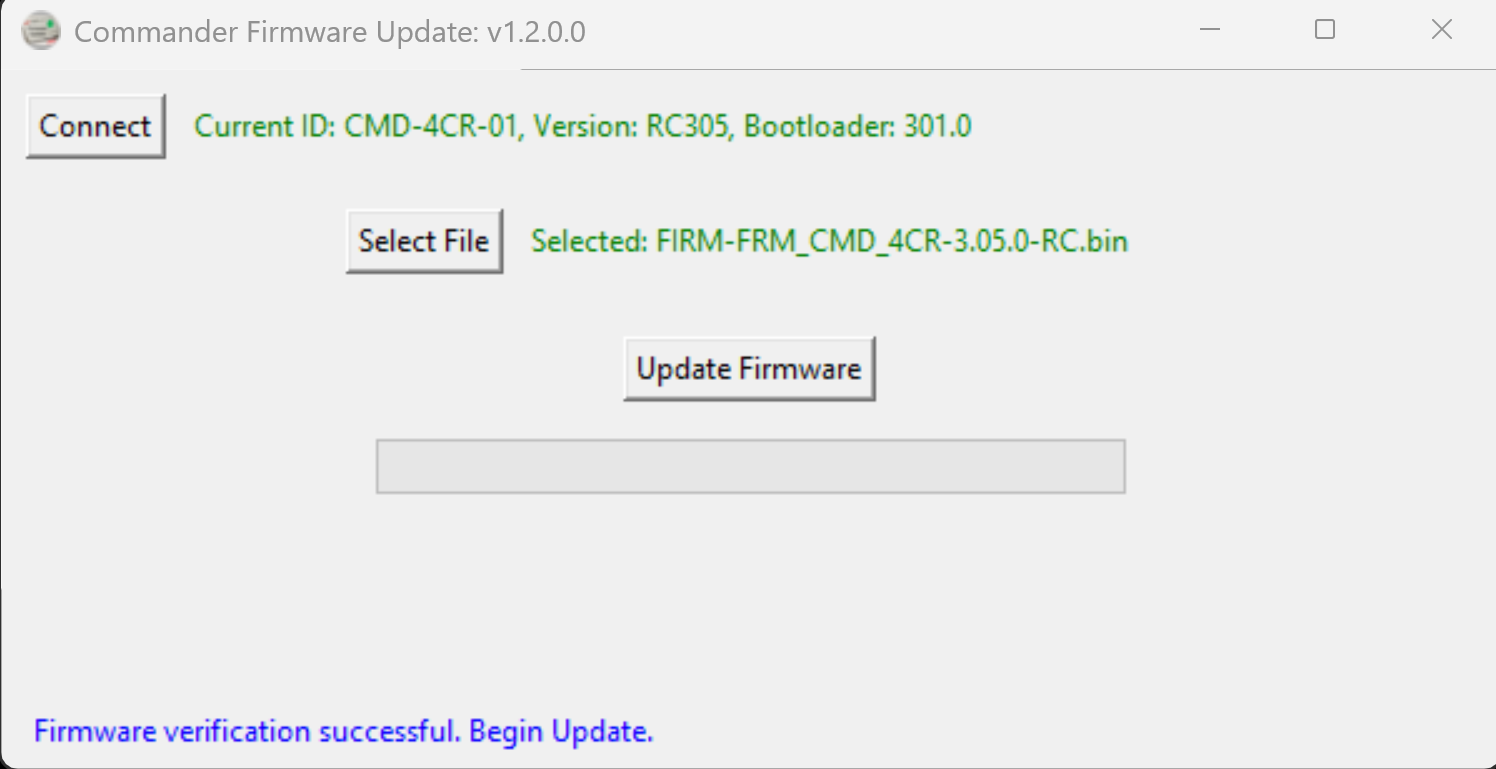
- Flash the firmware. Click the Update Firmware button.
- Expected result: Blue status text appears in the bottom-left corner of the window.
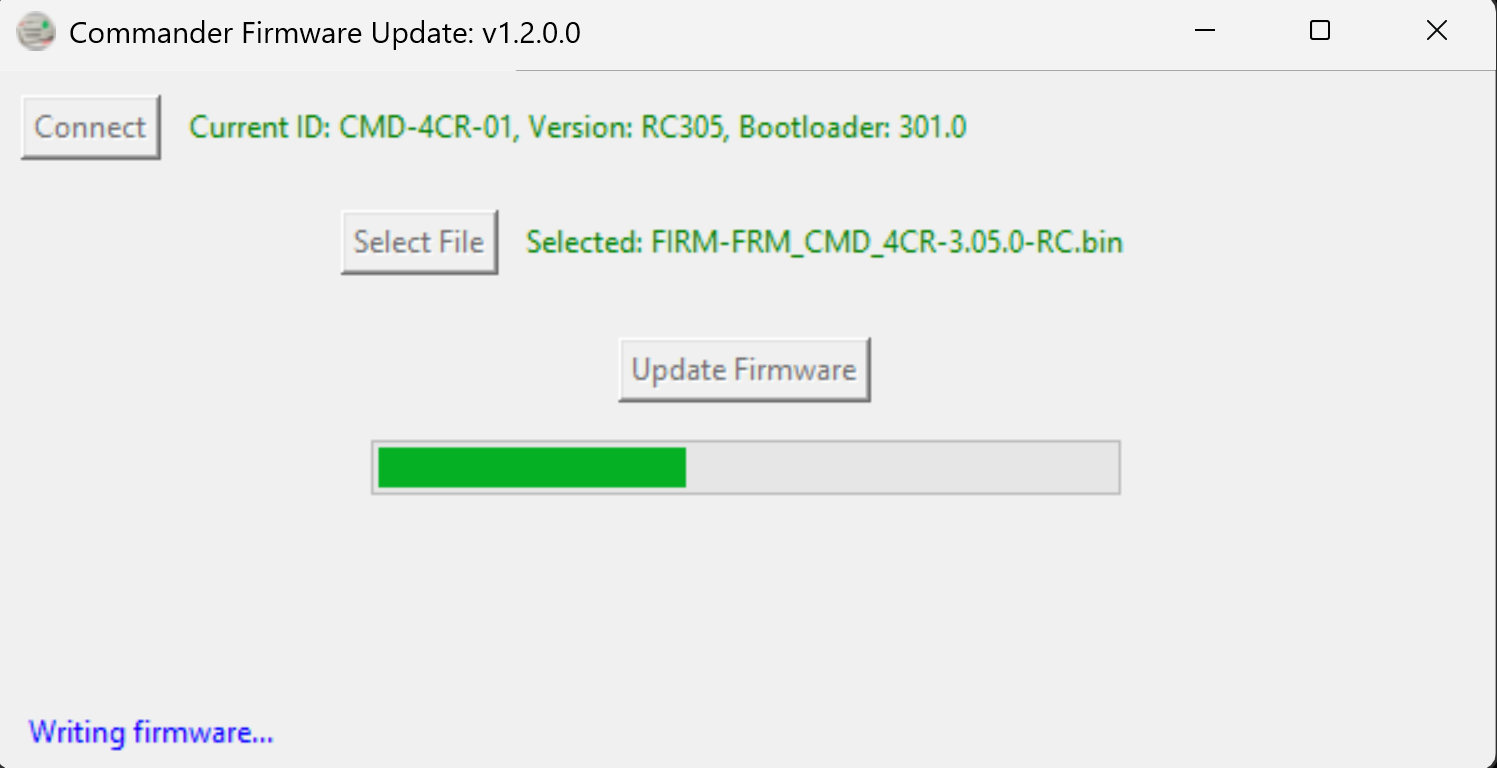
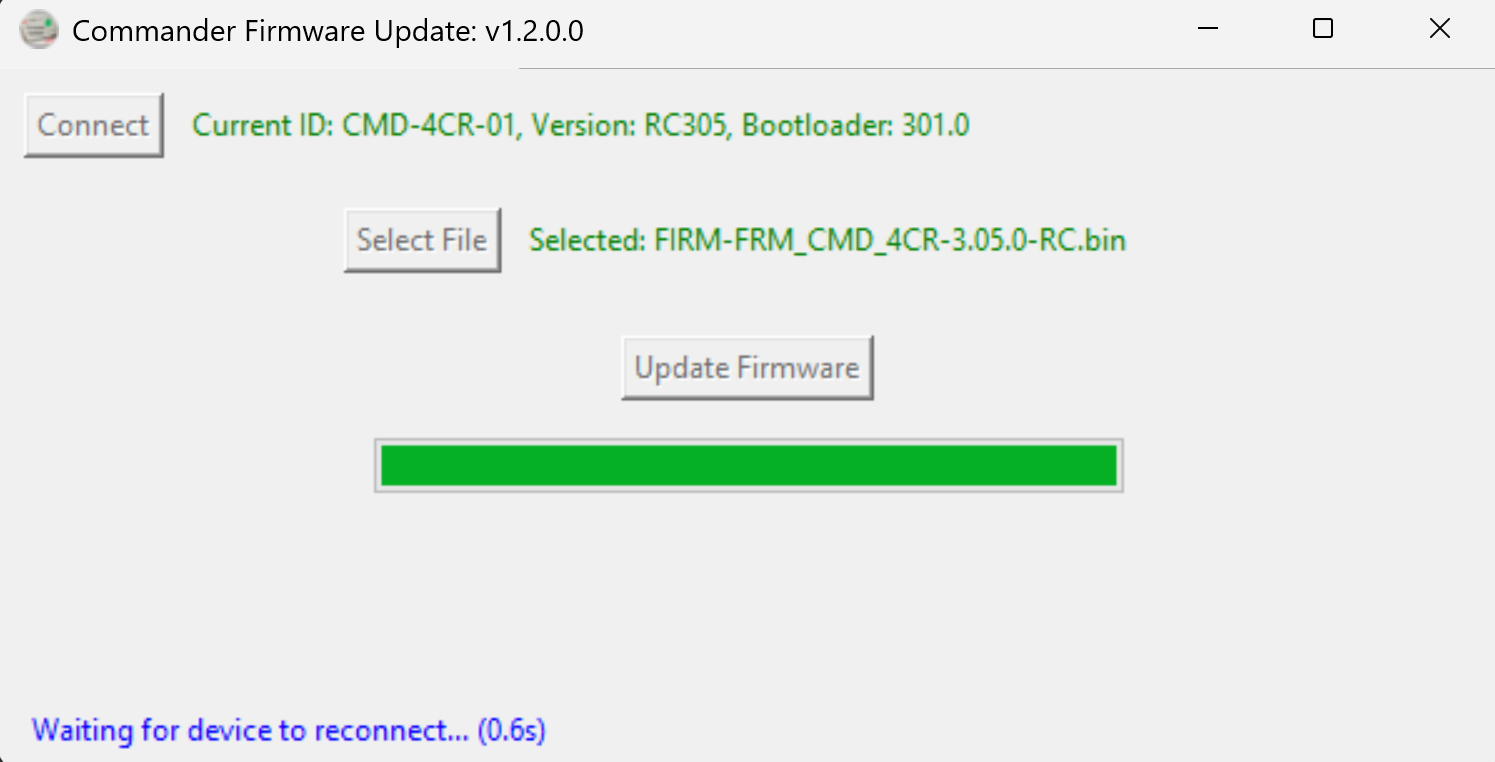
- Expected result: When the write process finishes, the software displays Waiting to reconnect... with a counter up to 10 seconds.
- Expected result: Once the unit reconnects, the text changes to Updated to followed by your Commander ID and version RC305.
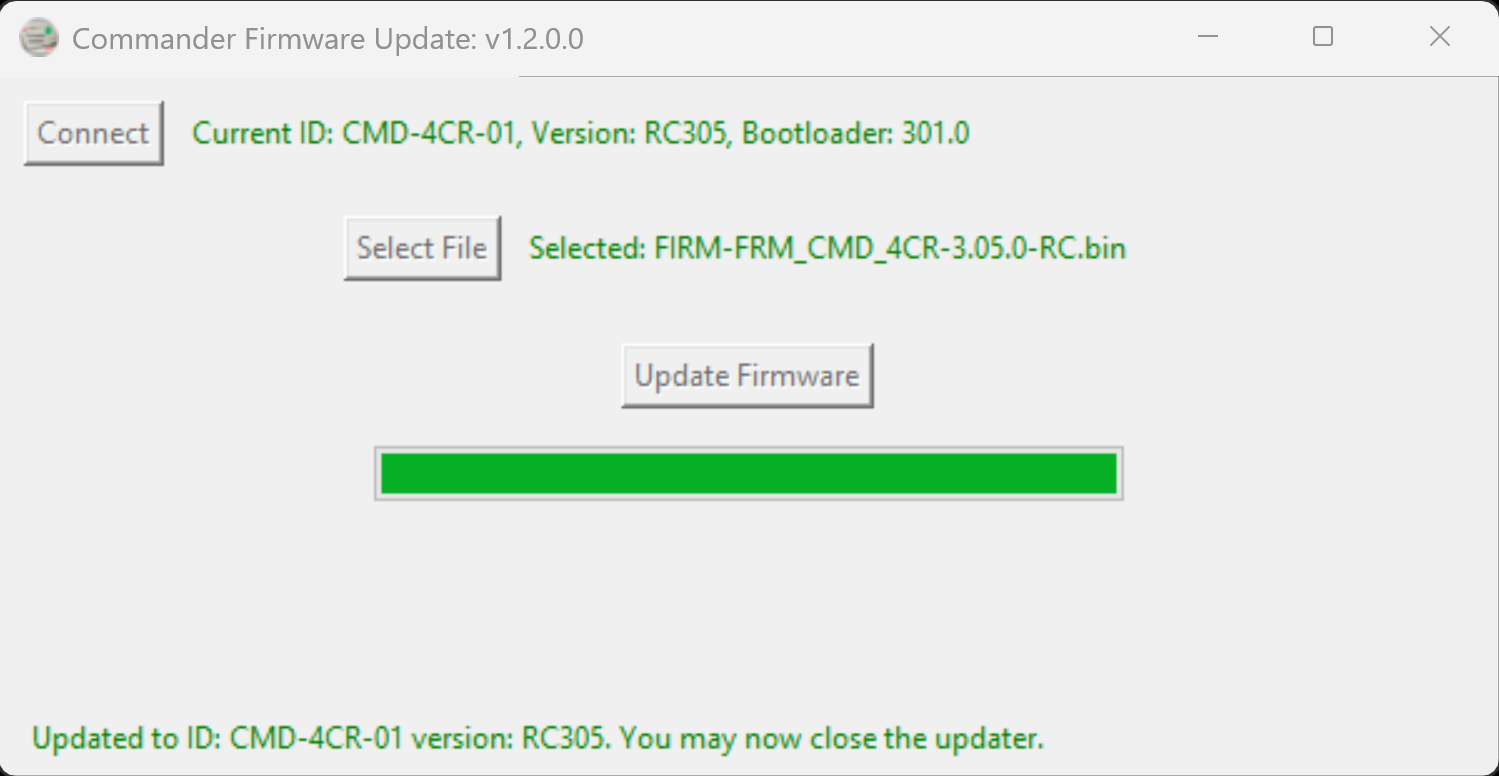
- If the ten-second counter expires without automatic confirmation, restart the GUI application and click Connect to check the version. If the version did not update, power cycle the controller and repeat step 4 to 7.
- If the device does not downgrade after several attempts, contact Nippon Pulse.
- Repeat steps 4-7 for the bootloader v301
- When selecting file the file to write to the Commander select "BOOT-FRM-3.01.0.bin"
- All other steps will be the same as above.
- Expected result: The bootloader version will show up as 301.0 in the Commander Firmware Update application.